An external monitor lets you place text at a comfortable distance instead of leaning toward a built-in screen. A monitor arm costs $80 to $250 and sets the height and angle of that screen, which reduces neck strain during long sessions.
A privacy filter runs $30 to $60 and matters in shared spaces.
For comfort accessories, a laptop riser or vertical stand lifts the screen to eye level and usually costs $30 to $120. A cooling pad helps with fan noise and heat under load, typically $25 to $60.
Our guide to the best gaming monitors for PC covers screen selection when you want one display that handles both work and play.
External monitors also change how you work. A wide monitor can hold your code and a browser side by side, which removes the alt-tab habit that slows people down.
Two smaller monitors often cost less than one large one and give you more usable screen area at the same desk depth.
An external keyboard and mouse are the accessories that change how fast you work, and they are cheaper than the laptop upgrades people spend money on instead.
External keyboards fall into two groups. Laptop-style scissor keyboards are quiet and thin, and suit travel. Mechanical keyboards feel different under the fingers and suit long typing sessions.
External mice add a pointing device with far more precision than a trackpad, and a mouse that suits your hand size matters more than any sensor number.
For audio accessories, the sequence matters. Start with a webcam if you take video calls, because built-in laptop cameras are the weak link in most setups. Add a microphone only if your calls need it, since many headsets include one.
Headphones with noise cancelling beat open headsets for focus, and our guide to the best headphones with noise cancelling covers the options.
Set a $200 rule for this group. A $60 keyboard, a $50 mouse and an $80 webcam cover almost every desk. Spend more only when you have already felt the limit of the cheaper option.
Protection accessories are the cheapest way to avoid an expensive repair. A padded sleeve, a screen cleaning kit and a small water-resistant pouch for cables cost under $80 together, and they cover the most common accidents in a bag.
Which power and protection accessories are worth buying?
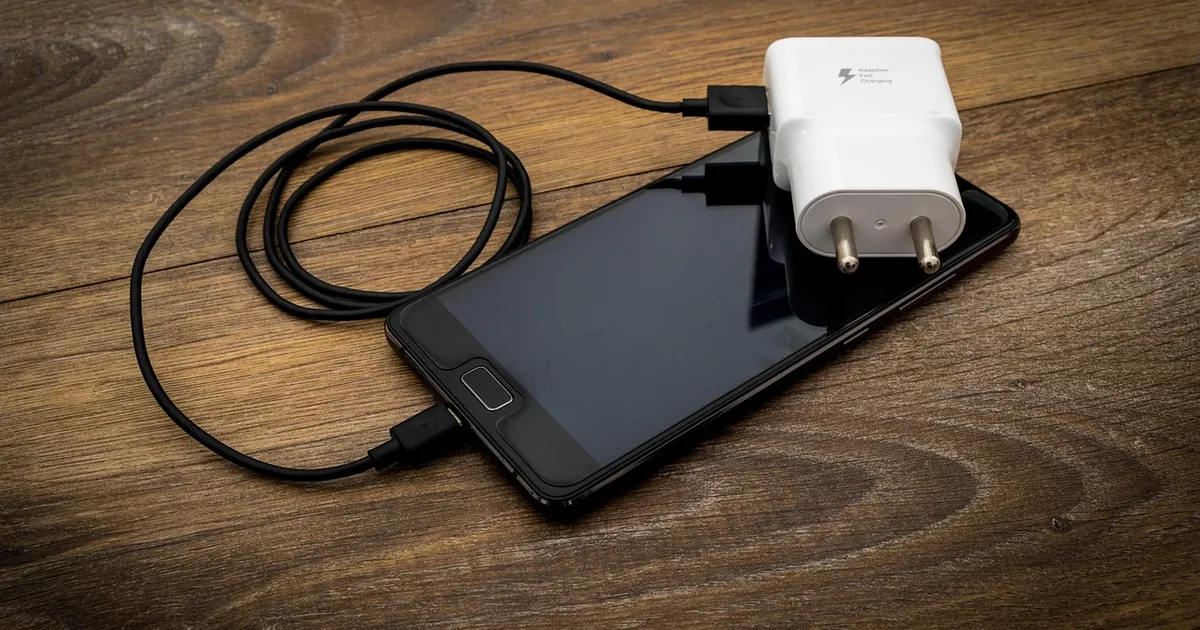
A spare charger or power bank and a padded sleeve cover most of the value here, and both cost less than one repair.
A power bank also has travel rules, and the FAA passenger battery guidance sets the watt hour limits you need to know before you pack one.
Power accessories come in three forms. A second charger for your exact model keeps you working when the original is at home. A universal charger with a USB-C port handles several devices, though it is slower for laptops.
A power bank covers outages and long days away from a socket, and budgeting apps are one way to plan the spending around a new accessory.
For protection accessories, a padded sleeve around $30 to $60 protects a laptop in a bag, and a hard case protects one in checked luggage. A screen cleaning kit and a microfiber cloth cost $10 and stop you from wiping grit across the display.
Skip screen protectors on modern laptops unless you need one, since many reduce clarity.
One more power accessory earns its place for anyone who travels with a laptop. A surge protector or a small travel power strip means one outlet serves the charger, the monitor and the phone.
How much should you spend on laptop accessories?
A complete desk setup runs $250 to $450, and a portable kit runs $80 to $150. The difference between the two is whether the accessories stay at a desk or travel with you.
A $300 setup that covers everything:
- A $120 dock with dual display support
- A $60 external keyboard and a $50 mouse
- A $80 webcam for calls
- A $35 laptop sleeve and a $10 cleaning kit
- A $30 monitor riser or stand
Some accessories are worth paying more for. Thunderbolt docks hold the best speed, and the $227 Kensington Thunderbolt 5 model drives three 4K displays.
But a $120 dock covers most single-desk setups, and the difference is not visible in daily use unless you run high-resolution displays or move large video files.
Set the budget from your desk, not from a list. Measure the space, count the screens you actually use, and check the ports on your laptop before buying anything that plugs in.
The most common overspend happens when people buy a dock first. A dock is only useful once you know how many displays you will run and which ports your laptop has.
Counting those first takes five minutes and prevents the most expensive mistake in this category.
A portable kit is a different purchase. If the accessories go in a bag and come out at a desk for a week, the priorities flip.
A small hub, a compact keyboard, a wired mouse and a power bank cover most travel setups for under $200.
Buy in layers rather than all at once. Start with the dock or hub and the input devices, then add the display equipment once you know your desk will hold it.
That order keeps the expensive mistakes at the end of the list, where they are cheap to undo.
What are the next steps to build your accessory kit?
Count your ports, list your devices, and buy in the order of friction you feel every day. That is the fastest way to choose the types of laptop accessories worth owning.
Work through this list:
- Check which ports your laptop has and which ones you need
- Decide whether the setup stays at a desk or travels with you
- Buy a dock or hub first if you use external displays
- Add a keyboard and mouse if you type for hours
- Add a webcam or microphone only if calls require it
- Finish with protection and a spare power option
Two final checks pay off. Confirm your operating system, because many Mac docks only mirror two displays while Windows systems extend them across three.
And confirm the power delivery rating, since a dock that cannot charge your laptop while it charges your phone will work badly.
The WIRED tested docking station guide compares these features across the main models, and this hub and dock buying guide walks through the port specifications.
Photo: StockSnap, Pixabay Content License, via Pixabay (https://pixabay.com/photos/computer-keyboard-apple-electronics-2565478/)

 Fazlur Rahman