| Gaming keyboard | Price | Layout | Standout feature |
|---|
| Razer BlackWidow V4 Pro | $229.99 to $249.99 | Full size | Command dial and macro keys |
| Razer BlackWidow V4 75 percent | $179.99 | 75 percent | Compact with a number row |
| Razer BlackWidow V4 Pro 75 percent wireless | $249.99 | 75 percent | Wireless with per-key lighting |
| Logitech Pro X TKL Lightspeed | $214.99 to $264.35 | TKL | Wireless with a gaming mode |
| Lemokey P1 HE Wireless | About $210 | Compact | Magnetic switches with Rapid Trigger |
| Keychron C3 Pro | Budget tier | Compact | Low entry price |
| Peripheral category | Budget range | Premium range | What decides the winner |
|---|
| Gaming mouse | Under $60 | $160 and up | Weight and polling rate |
| Gaming keyboard | Under $70 | $230 and up | Switch type and layout |
| Wireless headset | $80 | $250 and up | Microphone quality and comfort |
| Game controller | $60 | $200 and up | Platform support and latency |
| Desk mat and monitor arm | Under $30 | Under $250 | Surface size and adjustability |
How do headsets and controllers compare?
A good headset matters less than a good microphone, and a controller is worth it only if you play on console or on a couch. That is where most of the money in a peripheral budget goes when it should not.
For headsets, the HyperX Cloud Stinger 3 Wireless is priced at $79.99, down from $99.99, and supports PC, PS5, Xbox, Nintendo Switch and mobile. The Alienware AW725H tri-mode headset sits at $112.99, down from $149.99, and covers the same platforms.
Expect to spend $110 to $250 on a wireless headset that many players rate as premium.
Controllers are simpler. If your games run on a console, the official controller is the safest choice because it guarantees firmware support and pairing. If you play on PC and sit at a desk, a keyboard and mouse beat any controller for competitive shooters.
When you compare gaming peripherals, match the device to your platform and your posture rather than to a spec sheet.
Accessories round out the setup. A large desk mat, a monitor arm that lifts the screen to eye level, and a cheap webcam for streaming add more to your sessions than a second headset does.
Our guide to the best webcams for streaming covers the camera side, and the best travel headphones covers audio for commuting.
Every category has a floor price and a ceiling price, and the gap between them is rarely visible in play. A $40 keyboard and a $240 keyboard register the same keystrokes, and the difference shows up in materials and lighting rather than speed.
Where money does change outcomes is in the mouse, because weight and sensor quality affect how well you can aim.
There is a second tier for each category, and the step up usually costs twice as much as the step you just took. Going from a $50 mouse to a $160 mouse is a $110 jump.
Going from a $130 mouse to a $180 one is a $50 jump, and the second upgrade usually matters more than the first.
How much should you spend on a gaming setup?
A complete first setup costs about $200 to $350, and a premium one runs $600 to $900. Most of the gap comes from three decisions: keyboard, mouse and headset.
You can build a strong budget setup around $200:
- A keyboard near $70 with a solid switch
- A mouse near $60 that weighs under 70 grams
- A wired headset near $50 with a detachable microphone
- A desk mat and a spare cable for about $20
Every step up from there costs roughly as much again, and the returns shrink fast. A $230 flagship keyboard rarely plays measurably better than a $130 board with good tactile switches. A $160 mouse and a $40 mouse often perform identically for a new player.
The exceptions are worth knowing. Buy premium where you already feel pain. If your wrist hurts, an ergonomic mouse is worth more than any other upgrade.
If your keyboard rattles, a better board matters. If you cannot hear footsteps, invest in audio before anything else. A regional survey of gaming hardware buying habits found that budget gear rarely limits performance for most players.
Shape beats every other consideration for most players. A mouse that feels wrong in the hand causes small corrections that cost attention, and no sensor can fix a grip that does not suit you.
Testing mice in a shop, or borrowing one, saves more time than reading spec sheets.
Which accessories finish a gaming setup?
Three cheap categories complete almost every setup: a desk mat, a monitor arm and a light. They cost less than any device in the list and change how the desk feels.
A desk mat gives your mouse a consistent surface, which helps with tracking on cloth and keeps the desk clean. It costs $20 to $50 for a large enough pad.
A monitor arm costs $80 to $250 and puts the screen at eye level, which removes the neck angle that comes from a laptop on a desk.
Lighting matters more than players expect. A cheap light beside the monitor fixes glare from a window and makes camera feeds look better.
For streaming, the webcam and lighting section of our streaming gear guide covers the options, and a clip-on light costs $20 to $40.
| Accessory | Price | Problem it solves |
|---|
| Large desk mat | $20 to $50 | Consistent mouse surface |
| Monitor arm | $80 to $250 | Screen height and neck angle |
| Clip-on or desk light | $20 to $40 | Glare and camera quality |
| Headset stand or hook | $15 to $30 | Desk clutter and damage |
| Spare cables and small hub | $25 to $60 | Reach and port access |
Two things to skip are a controller charger you do not need and a second pair of headphones for a desk that already has a headset. Accessories multiply quickly, and each one takes desk space.
Budget gear rarely limits performance for most players, and a regional survey of gaming hardware buying habits reached the same conclusion. The gear you notice most is the gear that fits your hands and your desk.
What are the next steps to build your gaming setup?
Set a total budget, pick one device from each category, and check that everything works with your platform before you buy. That is the fastest way to compare gaming peripherals without overspending.
Work through this list before you order:
- Decide PC, console or both, since that changes the headset and controller choice
- Set a firm total, including a mouse pad and cables
- Try a mouse in a store if you can, because shape matters more than weight on paper
- Check that your keyboard layout matches your muscle memory
- Confirm wireless works with your PC and that you can charge it
- Read return policies, since peripherals are easy to order twice
One last practical point. Buy the mouse first and use it for two weeks before anything else.
It is the device you touch the most, it is the one you notice most when it is wrong, and the shape is personal in a way that specs never capture.
Our guide to RTINGS gaming keyboard rankings and PC Gamer gaming mouse testing both separate tested winners from marketing claims.
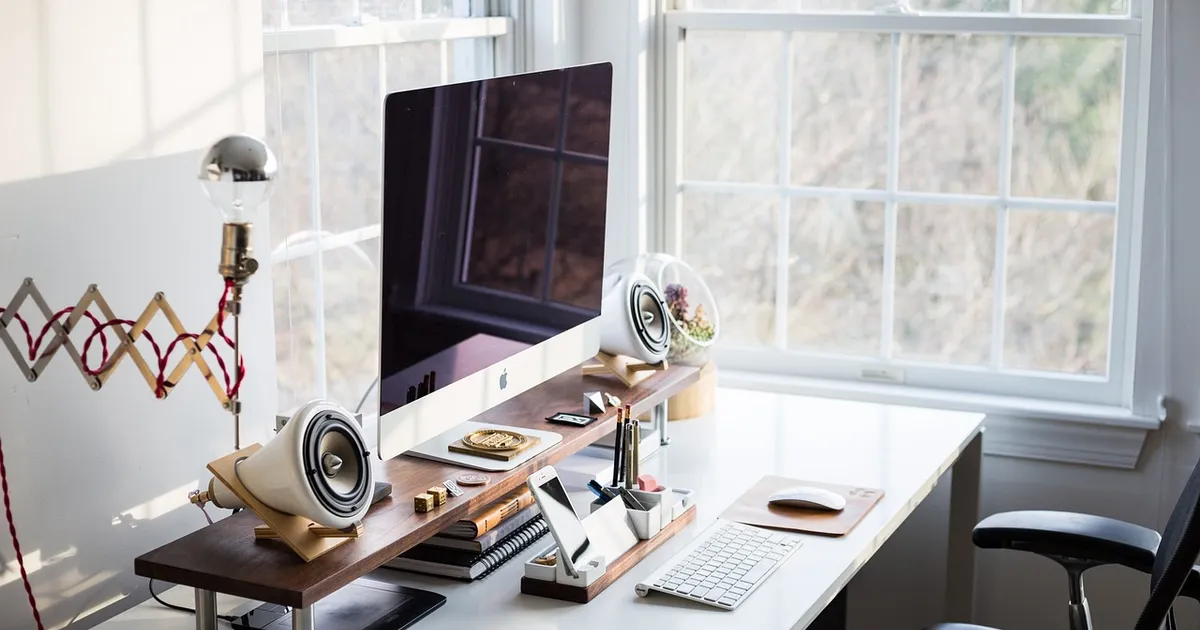
Photo: martinvorel_com, Pixabay Content License, via Pixabay (https://pixabay.com/photos/home-office-pc-computer-1207834/)

 Fazlur Rahman